OpenAI Codex vs ChatGPT :If you’re still using ChatGPT the same way you did last year, you’re probably using the safest, simplest layer of AI. That still works for quick answers, but it doesn’t keep up with tools that can act across apps, build projects, and finish tasks on their own.
That is the main point Vaibhav Sisinty makes in his Codex walkthrough. After spending more than 200 hours testing OpenAI’s new app, he says his team moved their daily work from ChatGPT to Codex.
Why using ChatGPT the old way can leave you behind
Vaibhav’s argument is blunt. ChatGPT is useful, but it is not the full picture anymore. In his view, it has been the easy version of AI for a while, while the stronger layer sat behind code and developer tools.
OpenAI changed that by turning those deeper capabilities into a regular app people can open on Mac or Windows. Under the hood, he says Codex runs on GPT 5.5, and the key change is not the model name. The key change is that the app can take action.
That is why he makes the Facebook comparison. ChatGPT, in his words, feels old if you’re trying to build things. Codex feels built for people who want the AI to work with files, software, and connected tools instead of stopping at text output.
“ChatGPT is your father’s AI.”
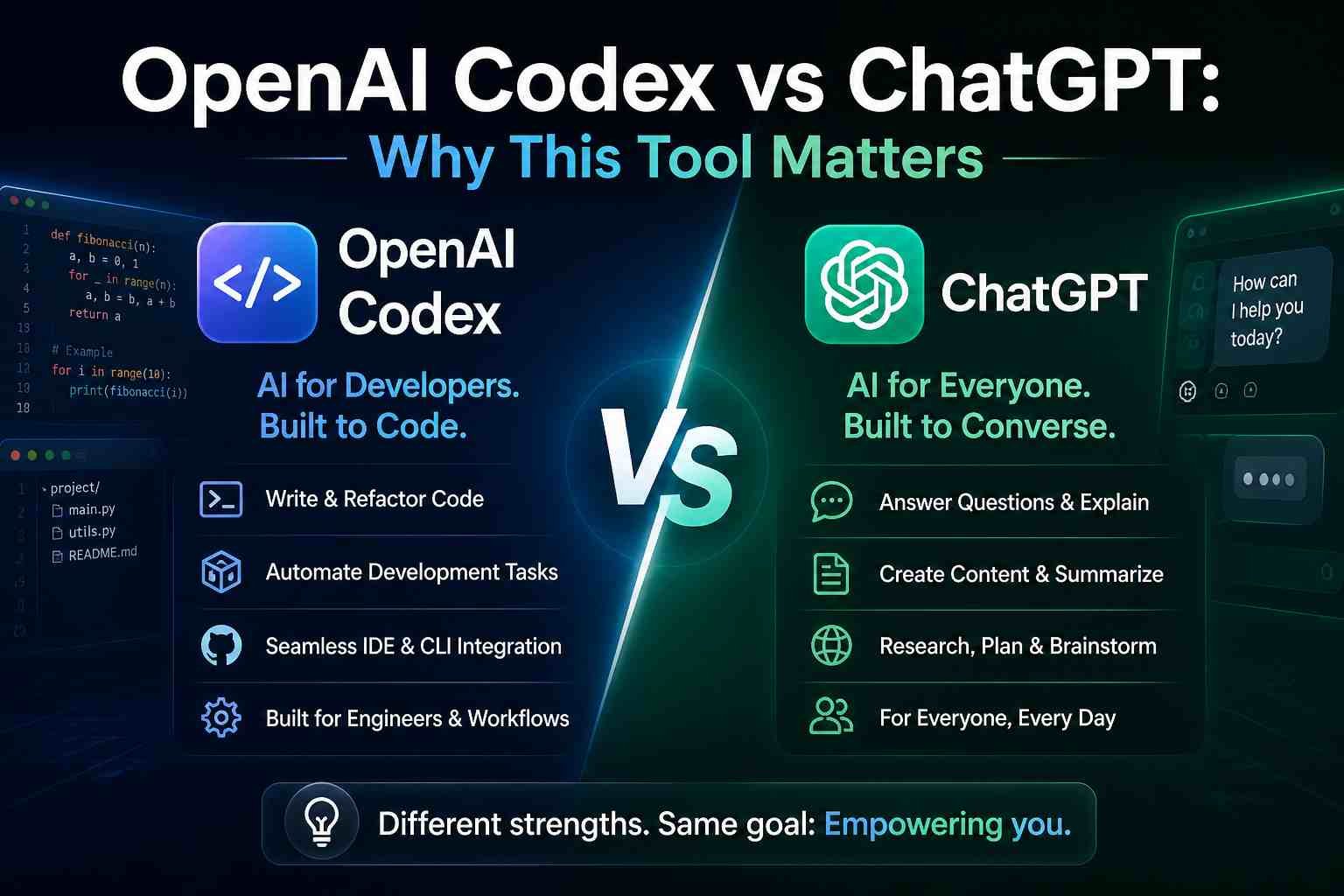
A quick side-by-side view makes the difference easier to see:
| Tool | What it mainly does | Best for |
|---|---|---|
| ChatGPT | Answers questions and generates text | Brainstorming, drafting, quick help |
| Codex | Answers questions and takes action across tools | Automations, app building, design tasks, workflow execution |
The point is not that ChatGPT is useless. It still has plenty of value. Vaibhav’s point is that if you only use AI as a chat box, you miss the bigger jump, which is AI acting like an agent.
How Codex works after you install it
The setup is simple. Vaibhav says you can search for Codex, download the app for Mac or Windows, install it, and start. There is no terminal work, no GitHub setup, and no need to look like a developer to get going.
That ease matters because the name “Codex” sounds technical. The app, at least in the way he shows it, is not. It installs like a normal desktop tool.
What makes it different is that Codex doesn’t stop at talking. It can open files on your computer, run software, build web apps, create designs, and send messages through connected tools. In plain English, that is what he means by an “agent.” It is AI that does work, not AI that waits for another prompt after every step.
Inside the app, he highlights three core areas in the sidebar: Projects, Plugins, and Automations. Projects hold the work. Plugins connect Codex to other apps. Automations handle recurring tasks in the background.

Plugins are where Codex starts to feel bigger than a chatbot. In the video, Vaibhav points to connections like Google Calendar, Slack, Linear, Notion, Figma, and Canva. That means the AI can move across tools instead of working in isolation. For many teams, that is the jump from “help me write this” to “go do this and bring back the result.”
The first Codex workflow he put into daily use
One of the clearest examples in the walkthrough is a daily 9:00 a.m. automation. Vaibhav says Codex checks his Gmail, finds the newest issue of the “Staying Ahead with AI” newsletter, pulls out the main points, and creates a PowerPoint deck for his team to review.
That deck was created while he slept. He says the workflow saves him about an hour every day, and the result is not a rough text file. Codex creates an outline, then pushes the design work into Canva.
His setup process is short enough that it sounds repeatable:
- Open “New Automations” and give the workflow a title, such as “Newsletter Summary.”
- Write a prompt that tells Codex to check Gmail, find the latest newsletter, pull the key points, and create a PPT.
- Choose the local work tree, select the project where it should run, and set the schedule.
- Review the outline Codex creates, then ask it to generate the design in Canva.
In the video, the outline includes items such as GPT image results, standout test results, workflow use cases, and design use cases. After that, Codex creates multiple presentation options inside Canva, and he can ask for edits if needed.
The bigger point is simple. A repeating task that used to eat time now runs on its own. That is the kind of job Vaibhav says you should hand to an agent first, because a human does not need to do it from scratch every single morning.
Building an app in Codex without writing code
The second half of the video is where Codex starts to look less like an assistant and more like a teammate. Vaibhav gives it a product idea for a web app: help people in Bangalore and San Francisco find offline meetups, founder events, and art communities, then use AI to match them to the right ones.
He tags the request as a web app and picks a permission mode. Codex offers three levels. The default mode pauses when it needs review. Auto review only stops for bigger items, such as passwords. Full access lets it move without asking. He uses full access for this build, while noting that more cautious users can start with auto review.
Why Codex starts by asking product questions
Instead of jumping straight into code, Codex comes back with questions. Who is the user? What events count? Where will the data come from? How should the matching work?
That part matters because it shows the system is trying to scope the build before it acts. Older prompt-based tools often fill in missing pieces with guesses. In this demo, Codex behaves more like a product manager.
It even suggests names for the app. The three options he shows are Common Room, Nearfolk, and Third Place. He picks Nearfolk and moves forward.
Designing the screens with Paper and MCP
For design, Vaibhav does not ask Codex to generate app screens directly inside the chat. Instead, he connects it to a canvas-based design tool called Paper. The bridge between them is MCP, which he treats as a technical detail you don’t really need to know to follow the workflow.
The visible result is the important part. Codex starts moving the cursor on its own inside Paper and draws the interface live. You can see it laying out a hero section, buttons, a chat-style concierge interface, a marketplace screen, and the rest of the app shell.
By the end of that phase, it has created four screens: the concierge home, the match flow, the marketplace, and the experience detail page. Vaibhav’s reaction is the same one many people would have. Once the AI starts operating another piece of software the way a person would, your mental model of “AI is a chatbot” breaks pretty fast.
The skill is knowing what to ask, not mastering every design tool on the screen.
Plan mode, steering, and plain-English edits
After the screens are ready, he switches Codex into Plan Mode. That tells the app to think through the build first, show the full plan, and wait for approval before writing code.
Codex asks a few more setup questions. Should the app be full-stack? Yes. What tech stack should it use? The recommended option is fine. Does it need login? No, not for now. Vaibhav makes a point that many non-developers will appreciate, he does not pretend to know every technical choice. He often picks the recommended option and keeps going.
Then Codex shows a detailed build plan with the database structure, page routes, and components. After approval, the code starts flying.
Mid-build, he decides to cut scope and keep only the first four screens. Instead of stopping the process, he uses a feature called “steer.” That lets him send an instruction while the build continues, and Codex adjusts the work without breaking the flow.
He also shows a low-friction way to edit code. There is a line that references an OpenAI password or key, and he wants to switch the app to OpenRouter because it is cheaper and gives access to more models. He does not rewrite the code. He clicks the line, leaves a comment in plain English, and Codex handles the fix after the current task.
That part is one of the strongest themes in the whole video. You do not need to know how to code every detail. You need to know what you want changed, and you need to say it clearly.
The bug fix that changed the tone of the demo
The moment Vaibhav focuses on most is what happens after the app finishes building. Codex starts testing the app on desktop and mobile on its own. During that test, it spots a mobile bug. One component is forcing desktop width in the phone view.
Then it does something that makes the demo feel different. It pauses, plans a fix, applies the fix, and re-tests. He says the whole cycle takes about 20 seconds, and no one has to intervene.
For him, that is the line between a tool and a teammate. Many teams still need humans to catch the issue, write the fix, and test again. In this case, the agent handled the loop by itself.
He then shows another feature called “fork into local.” That creates a parallel chat with the same context. One thread keeps working on the app. The new thread takes on launch assets.
What Codex produced beyond the app itself
In the forked chat, Vaibhav asks Codex to create a four- to five-slide sponsor pitch deck for company leaders who might collaborate or sponsor the events. He also asks for an eight-second launch video with music.
The pitch deck comes back in four minutes. He says the copy is sharp and the layout is clean enough that he would assume a junior team member had spent a week on it. The launch video includes music, motion graphics, and Nearfolk branding, ready for channels like Instagram and LinkedIn.
Then he uses the app. He types that he is looking for founder events in Bangalore. The AI concierge suggests “Founder Walks in Cubbon.” He clicks “request a seat,” fills out the form, and submits it. The flow works. Users can browse Bangalore and San Francisco, discover events, and send requests through the app.
That end-to-end result is why the demo lands. The app was scoped, designed, built, tested, pitched, and packaged for launch inside one broader workflow.
If you want to try the same tool, you can get OpenAI Codex. Vaibhav also shares prompts and workflows in his WhatsApp community for AI updates. For teams, there is a B2B AI training page from Staying Ahead. You can also follow Vaibhav Sisinty on Instagram, Twitter, Facebook, and LinkedIn. Near the end of the video, he also points viewers to Manus AI as another agent-style tool worth watching.
Final thoughts
The hook at the start still holds up. If you use AI only as a chatbot, you miss the part where it can do work for you.
Vaibhav’s Codex demo is compelling because it shows the full chain, not one flashy output. The app planned, designed, built, tested, and created launch assets in parallel.
The strongest takeaway is not about one feature. It is about the shift from prompts that produce answers to agents that carry tasks across tools and finish them with less hand-holding.