Let’s dive into How to Set Up OpenClaw on AWS Lightsail.
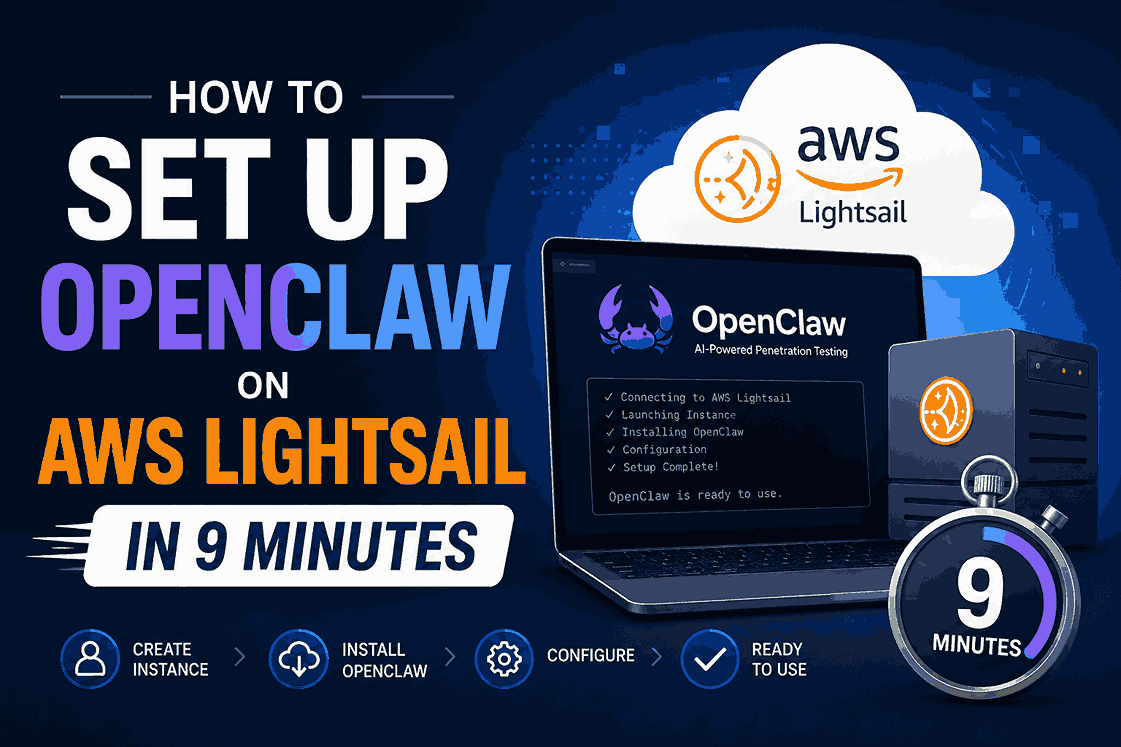
You can get a personal AI agent online faster than most app installs. With OpenClaw on AWS Lightsail, the core build takes one short session and gives you an agent that can chat, search, speak, and follow you onto Telegram.
This setup came from a live AWS Fort Lauderdale user group meetup, where lots of people left with their agent fully online. Keep the full OpenClaw AWS lab guide nearby, because it has the exact commands behind the walkthrough.
What this setup gives you
At a high level, this build combines a hosted OpenClaw instance, Claude through Amazon Bedrock, Telegram for daily use, Tavily for web search, and ElevenLabs for voice. The result is practical right away. You do not end up with a demo that only works in one browser tab.
The presenter also notes that this is the same setup used in production each day. That matters because the flow is built around tools people are already using, not a one-off experiment. If you want background on the platform itself, the OpenClaw project site is a helpful companion to the lab.

What makes it click is the mix of control and convenience. The agent runs on AWS infrastructure you control, yet you can still talk to it from your phone or desktop once Telegram is attached. That balance is why people at the meetup could finish the setup and walk away with something usable the same night.
What you need before you start
The walkthrough moves past the prep work quickly, but you still need it done first. Otherwise, setup slows down right when the interesting part starts.
Before you launch anything, have these three items ready.
| What you need | Why it matters |
|---|---|
| AWS account | You need access to Lightsail and CloudShell. |
| API keys | The build uses model access, Tavily for search, and ElevenLabs for voice. |
| Budget alert | It helps prevent surprise charges while you test the instance. |
The API keys show up at different points. The model back end uses Amazon Bedrock, and the walkthrough also mentions the Anthropic back end. Later, you add Tavily so the agent can search the web, and ElevenLabs so it can speak.
Keep those keys somewhere easy to paste because you will move between the dashboard, terminal, and Telegram. Also, the recommended Lightsail plan is $24 a month, so a budget alert is smart to set before you create anything.
Launch OpenClaw on AWS Lightsail
Create the instance
Open the AWS Lightsail console and start a new instance. In the demo, the default settings are fine, and the selected blueprint is OpenClaw 3.2.
The setup follows a simple order:
- Create a new Lightsail instance.
- Keep the default options and choose OpenClaw 3.2.
- Add your own custom SSH key.
- Turn on automatic snapshots.
- Pick the recommended $24 a month plan.
- Name the instance and launch it.
A custom SSH key is the safer choice, and automatic snapshots give you a clean rollback point if you need one later. The demo does not spend time tuning every Lightsail option because it does not need to. In this case, the defaults are enough to get moving.
Prep CloudShell while it boots
While Lightsail is provisioning, copy the script from the lab guide and open CloudShell. That part is needed for the Bedrock and Anthropic back end in the walkthrough. Once the permissions are attached, move to the server itself.
When the instance shows ready, connect over SSH and confirm the session opens cleanly. That simple check tells you the base install is alive and reachable.
Connect the gateway and wake up the agent
After SSH works, open the OpenClaw dashboard. You need a gateway token for the next step, so paste that into the dashboard and hit connect.
If the screen says “pairing required,” that is normal.
Continue the device-pairing flow, approve the connection, and check the status. In the demo, the status comes back okay. If you lose a browser window during this part, reopen it and keep going. The flow is forgiving as long as you still have the token and approval step.
At that point, the dashboard becomes the main command center for your OpenClaw agent. A quick chat confirms that it is alive. The walkthrough uses a simple greeting, then asks who the agent is. During that first exchange, the agent gets a name, Cleo, which makes the build feel much more real.
Turn on full tools
Before moving to Telegram, change the tools profile to full and restart the gateway. That single step matters because it gives the agent access to useful actions that go beyond plain chat. Without it, the build is online, but it is not ready for much work.
Add Telegram so the agent works anywhere
The dashboard is good for testing, but Telegram is what makes the agent portable. Once this part is done, the same bot works on your phone and desktop.
Start with BotFather in Telegram. The flow is short:
- Send
/newbot. - Pick a display name for the bot.
- Choose a username that ends in
bot. - Copy the bot token BotFather returns.
Back on the server, run the openclaw channels add flow from the lab. Choose Telegram as the default chat channel, paste in the bot token, finish the setup, and leave the defaults as they are. When the channels update successfully, Telegram becomes the normal place to talk to your agent.
Now open the new bot in Telegram and hit Start. Then return to your SSH session and run the final command from the lab. In the demo, you can see Cleo start typing almost right away. That is the moment the agent stops feeling tied to setup screens and starts acting like a real assistant you can reach anywhere Telegram runs.
Enable web search and add a voice
Add Tavily web search
With the bot live in Telegram, the next step is web search. Run the Tavily setup command from the lab guide, then test it through chat. The walkthrough hides the key on screen, but the pattern is clear: add your Tavily API key, ask the bot to search, and confirm that the response comes back correctly.
Web search is one of the first upgrades that makes the agent more useful day to day, because it can look up fresh information instead of replying from model knowledge alone. Another nice touch shows up here as well. A lot of small fixes can happen by talking to the bot itself, instead of reopening every part of the server config.
Add ElevenLabs voice
The voice step is where the agent starts to feel much more personal. The lab includes a script for the harder parts of the ElevenLabs setup, along with the sag skill mentioned in the video description. You still need your ElevenLabs API key, but the script handles most of the setup work.
After that, send a short test message such as “Hello. Voice test. Is this thing on?” In the demo, the agent responds with voice, which confirms the setup worked. For a personal assistant, that difference matters right away.
Finish with the security audit
The last task is basic security hardening. Run the audit from the lab guide and review the output. In the walkthrough, the expected result reports “loop back” and “full.”
There is also a later lab section that can wait until after the core build. The important part is already done: the agent is online, connected to its services, and ready to use.
Final thoughts
A lot of people at the meetup got this running in one sitting, and the flow is short because the lab guide keeps the order tight. Once Lightsail, Bedrock, Telegram, Tavily, and ElevenLabs are connected, you have a working AI agent on infrastructure you control.
If you want the exact commands or want to keep expanding the build, go back to the full lab guide for the workshop. The setup is the first win. What you do with the agent after that is the fun part.