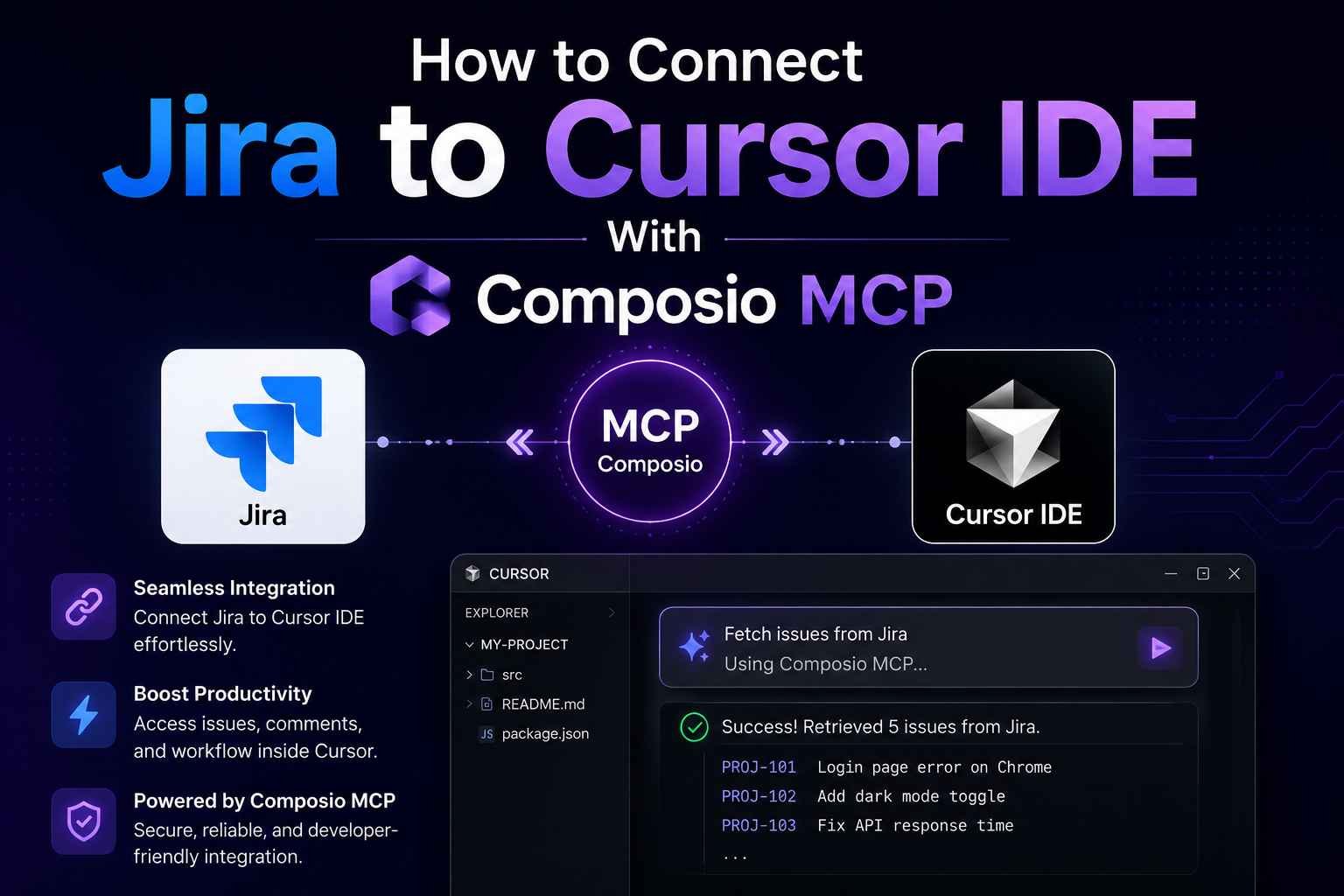
Switching from code to Jira over and over breaks your rhythm. If you already work in Cursor, it makes more sense to handle simple Jira tasks in the same place.
With Composio MCP, you can Connect Jira to Cursor IDE With Composio MCP, approve access once, then ask the agent to show your projects or create a new issue. The setup is short, and the first real test happens right after you connect it.
Why this Jira and Cursor setup is useful
The main win is focus. When Jira lives a tab or two away, even a quick check pulls you out of your code. By connecting Jira to Cursor through Composio MCP, you move basic project actions closer to where you already work.
That matters more than it sounds. A small interruption is still an interruption, especially when you’re debugging, reviewing files, or trying to capture a task before you forget it. In the video, the flow stays simple: connect Jira, authenticate it, list projects, then create an issue.
There’s also clear demand for this kind of workflow. You can see that interest in the Cursor community discussion about Jira and Confluence access, where users talk about bringing internal tools closer to the editor.
Before you start, you only need a few things in place.
| What you need | Why it matters |
|---|---|
| Cursor IDE | This is where you’ll add the MCP server and use agent mode |
| A Jira workspace | This is the account and workspace you’ll authorize |
| Access to Composio MCP | This is where you’ll generate the connection URL |
| A browser session | You’ll use it once for the authentication step |
Once those pieces are ready, the rest is mostly copy, paste, and approve. The MCP server acts as the bridge, so Cursor can send requests to Jira through Composio instead of leaving you to handle every task by hand.
Generate the Jira connection URL in Composio MCP
The first step happens on the Composio MCP app directory. This is where you pick the tool you want to connect, in this case Jira, and generate the URL Cursor needs.
That URL is the key part of the setup. Cursor uses it when you add a new MCP server, so it’s worth copying it carefully and keeping the browser tab open until the next step is done.
 Follow the flow shown in the video:
- Open Composio MCP.
- Search for “Jira”.
- Open the Jira integration page.
- Under the Cursor tab, click Generate.
- Copy the connection URL that appears.
Nothing tricky happens here, but accuracy matters. If you copy the wrong value or miss part of the URL, Cursor won’t know how to connect to the server later. Because of that, it’s a good idea to paste the URL somewhere temporary if you’re moving between windows.
The video keeps this part fast, which is a good sign. You don’t have to set up a complex menu of options first. You search for Jira, open the right page, generate the URL, and move on. That’s the whole handoff from Composio to Cursor.
Add Jira to Cursor’s MCP settings
Now move into Cursor. This is where the connection becomes part of your editor, so the next step is to add a new MCP server and point it at the URL you copied.
Inside Cursor, open Settings and find the MCP section. The video shows adding a new MCP server, naming it “Jira,” then pasting the generated URL into the server field.
The setup looks like this in practice:
- Open Cursor settings.
- Navigate to the MCP section.
- Add a new MCP server.
- Name the server Jira.
- Paste the connection URL from Composio.
Using a clear name helps later, especially if you add more tools over time. “Jira” is simple, obvious, and matches the action you’ll ask the agent to take.
If Cursor doesn’t reflect the new connection right away, a restart can help. Composio’s Jira MCP workflow guide for Cursor points to a similar pattern during setup, and it’s a useful reference if you want a second walkthrough.
Once the server is added, the technical part is mostly done. The connection exists, but Jira still needs your approval before Cursor can use it.
Authenticate Jira in Cursor agent mode
With the server in place, switch to agent mode in Cursor. This is the point where you ask Cursor to authenticate with Jira, and Cursor responds with a link for the approval flow.
Open that link in your browser. Then select your Jira workspace and grant the requested permissions. After that, the connection is live.
Pick the right Jira workspace during authentication, because that’s the workspace Cursor will use when it starts listing projects or creating issues.
This is the only step where you leave the editor for a moment, and even then it’s brief. The browser step is there so Jira can confirm that you’re the one approving access. Cursor doesn’t skip that part, which is what you want when project data is involved.
If you belong to more than one workspace, slow down and choose the correct one. That’s an easy place to click past out of habit. Once the permission screen is approved, Cursor should be ready to talk to Jira through the MCP connection you added a minute earlier.
The video keeps the instruction plain: ask Cursor to authenticate, open the link, select the workspace, grant permissions. There’s no extra detour. That’s a good sign that the setup is built for real use and not for a long admin session.
Test the setup with Jira projects and a new issue
After authentication, the smartest first test is a safe one. Ask Cursor to list all Jira projects. In the demo, Cursor returns the available projects, which confirms the connection is working and that Jira access is live.
That check matters because it tells you two things at once. First, Cursor can talk to Jira. Second, the workspace you approved is the one you expected.
A simple prompt is enough, such as list all Jira projects. You don’t need a fancy instruction. If the connection is active, Cursor should respond with your project list inside the chat.
Once that works, move to a write action. In the video, the next request is to create a new issue, and Cursor confirms that the issue was created successfully. That’s the moment the setup stops feeling theoretical and starts feeling useful.
You can follow the same order:
- Ask Cursor to list all Jira projects.
- Ask Cursor to create a new issue.
Because the second action changes data, it’s worth checking Jira after the command runs. A quick look in your Jira workspace will confirm that the issue exists where you expect it to. The video frames that as a clean success, which is exactly what you want from a first run.
These two tests also give you a nice read on the connection. Reading data shows that access works. Writing data proves the tool can act, not only report.
What this changes in day-to-day work
The value here isn’t the setup screen. It’s what happens after. When Cursor can reach Jira from the same workspace where you write code, smaller tasks stop feeling like context-switch chores.
That can be as simple as checking project names before you file something, or creating an issue while the bug is still fresh in your head. Those are ordinary actions, yet they’re the ones people delay because opening Jira, finding the right project, and typing the details feels like a separate task.
The demo ends with a prompt about automation, and that’s the right way to look at it. Even the basic examples shown here already point to a better flow. Cursor lists projects when you ask, and it can create an issue without sending you off to another tab.
For developers, that small shift is useful because attention is expensive. Every extra click costs a little focus. This setup cuts some of that waste by keeping issue work close to the code that caused the issue in the first place.
You don’t need to turn Jira into a fully voice-free robot to get value from this. A simple connection that can authenticate, read your projects, and create an issue already covers a lot of everyday friction.
Final thoughts
If bouncing between Jira and your editor keeps breaking your flow, this setup fixes a common annoyance fast. Generate the URL in Composio MCP, add it as a Jira server in Cursor, then approve access in agent mode.
After that, Cursor can handle basic Jira actions where you’re already working. That’s a small setup with a steady payoff, because your tasks stay closer to your code.